The anatomy of a post consists of the following components: Insight bubble, Headline (Post Title), Summary, Image, and Hierarchy (including taxonomies). Editing these components requires the user to be either an editor or admin.
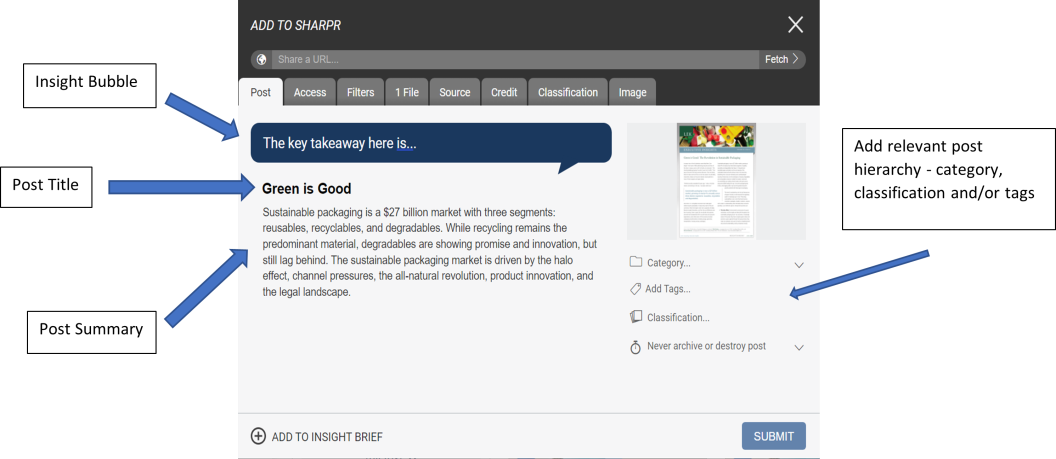
Insight Bubble
The insight bubble is an optional way to add context to the post. This tells users why the post is important to read. It is good to keep this concise and straightforward based on the content.
Post Title
The headline, otherwise known as the title of the post, is typically extracted from file name. This can be edited to the editor's liking.
Summary
AI will automatically extract a three-paragraph summary of the post. This is not the first three paragraphs of a document but is based on post relevancy. If the AI summary does not make sense to the user, the summary can also be manually edited and updated.
Image
An image will be extracted from the post, but you can click on the image to change it and it will redirect you to the Image tab.
Hierarchy
A post’s hierarchy can be found on the right-hand side when adding a new post and consists of the following:
- Category
- Classification
- Tags
- Add’l Taxonomies/Filters (if applicable
Definitions of Tabs
- Files Tab: This is where you add your post document(s)
- Post Tab: Sharpr will autogenerate the post title & summary after you submit you document – but you can use the post tab to edit either of these fields, add text into the Insight bubble, add any relevant data hierarchy (category, classification, tag) and update the post archive date (if applicable)
- Classification Tab: From the post tab, if you go to select a relavant classification, it will bring you to this tab to select it accordingly.
- Credit Tab: If you need to update the listed publisher and/or published date for the post, you can do that from here.
- Source Tab: If you want to reference the source URL (a good use case here might be a Google drive link to the document) - you can add that here, along with any other source information.
- Image Tab: An image will typically be extracted from the document or URL automatically, but if you wanted to manually update the post image – you can do that here.
- Access Tab (If Applicable): If any access rules should be applied to the post (including if the post should be restricted to a specific group only), this can be added here
- Filters/Taxonomies Tab (If Applicable): If your organization has added any additional filters/taxonomies, those can be selected here. If any of these fields are mandatory to add prior to submitting the post, that will be indicated with a (*) symbol.