Email newsletters serve as a powerful tool to provide valuable information or updates to assigned recipients with the added benefits of customization per hub and access to email analytics, such as open rate and click rate.
How to create an Email Newsletter
To create an email newsletter, click on the navigation bar > Emails.
Within the To field, you can copy and paste recipient emails or click on the ID icon to easily include Sharpr users or access distribution lists.
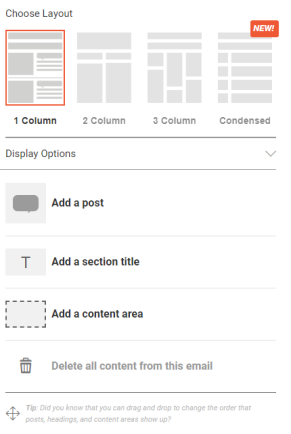
To add posts, click on “Add a post” in the right-hand panel. You can click on the + icon on the most recent posts or use the search bar in this modal to add specific posts. There is also an option to click on the fine tuner to filter by categories, classifications, etc. Once the posts have been added, drag and drop to rearrange.
To insert sections within the email newsletter, click on "Add a section title," which allows for customization of colors and fonts
Click on “Add a content area” to embed images. This can be used to add custom headers, footers, or section titles.
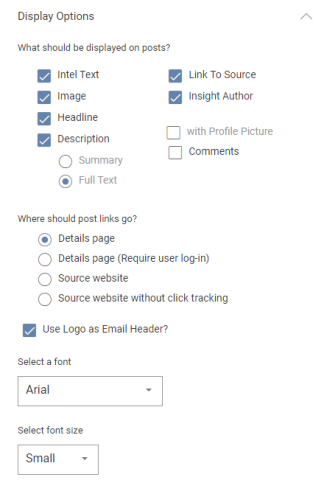
For additional customization options, click on the carrot next to “Display Options” providing options to shorten descriptions, remove insight authors, images, and more.
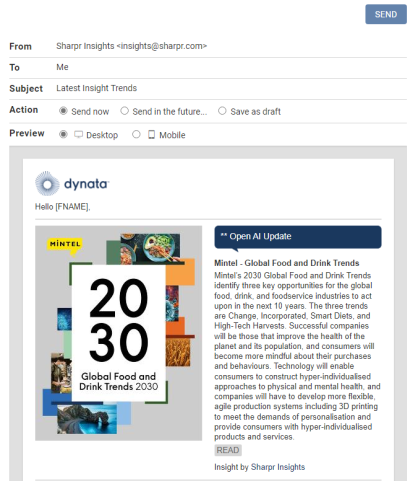
After crafting an email newsletter, click on “Preview/Send”. Within this modal, you can send the email newsletter immediately, schedule it for the future, or save it as a draft. Additionally, there is also an option to preview the email newsletter in both desktop and mobile environments.
Email Reporting
To access Email Reporting, go to the navigation bar > Admin > Email Reporting.
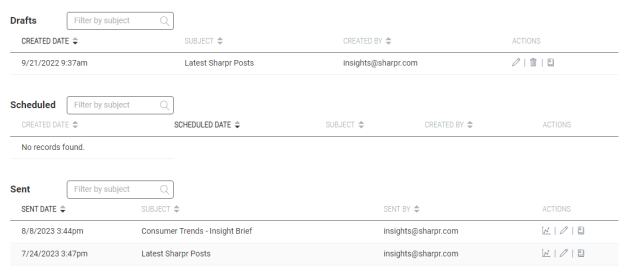
Within this section, you can view drafts, scheduled, and sent email newsletters. For drafts and scheduled emails, you have the options to edit by clicking the pencil icon, delete by clicking the trash icon, or convert the contents into an Insight Brief by clicking the book icon.
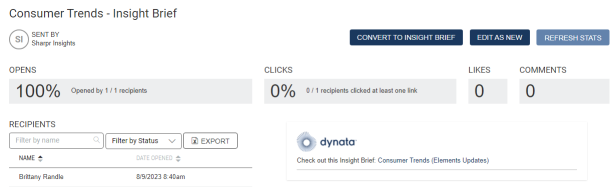
Under Sent email newsletters, click on the graph icon to access detailed analytics, including open rate, recipient engagement, click rate, and which posts generated clicks. Click on “Export” to export the analytics into an Excel sheet.
Additionally, you can edit the sent email, which will open as a new email, allowing you to reuse the same template including headers, custom images, and layout. You can also convert any sent email into an Insight Brief.
Additional Email Customization
If you would like the email newsletter to have a custom font not readily available within Sharpr or to update the “From” email to a company alias, please reach out to your Customer Support Manager.