Distribution lists are a great way to organize multiple recipients in groups.
Add Distribution Groups
There are various areas to add new distribution groups to the platform.
- Under Admin, click Email Distribution Lists > Add New.
- Specify the distribution list name and click Submit.
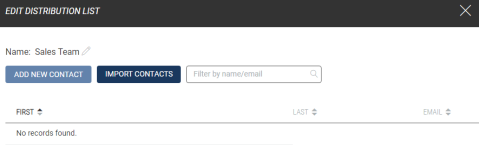
- Click Add New Contact to add individual recipients.
- Alternatively, click Import Contacts to import or paste from a spreadsheet with columns "First Name", "Last Name" and "Email Address" like the example here: Download Excel Template.
You can also add new distribution groups from the Automated Alerts modal or the Email Newsletter modal by clicking on the

icon > under Distribution Lists, click Add New.
Follow steps 2-4 to add a new distribution list.
Edit Distribution Groups
In Admin > Email Distribution Lists, you can click Edit next to any of the distribution list. Here, you can rename the distribution list, add contacts, edit or remove contacts, and search for contacts.
Click Delete to remove the entire distribution list completely.