Note: Only editors (full access users) and account admins can add content into a hub.
Sharp It is a browser bookmarklet that lets you add articles or web pages quickly and easily to Sharpr.
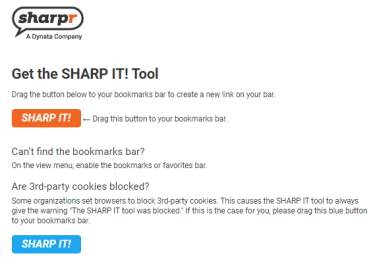
Open the Sharp It install page (or use the install link from your hub).
On the install page, drag the orange “Sharp It” button to your bookmarks or favorites bar for the default (in-page) version—or, if your browser blocks it or your org uses SSO, drag the navy (dark blue) button (white text) for the popup version. You only need to install one of them once, not each time you use Sharpr. If you use Sharpr on two different browsers (like Chrome and Edge), install on each browser separately.
Enabling bookmarks or favorites bar
-
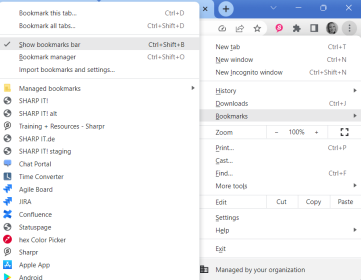
Chrome (bookmarks): Click on the three dots in the upper right-hand corner, go to “bookmarks” and make sure “show bookmarks bar” is being shown.
-
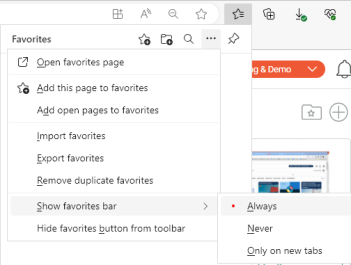
Edge (favorites): Click the star icon in the upper right-hand corner, go to “show favorites bar” and choose “always”.
-
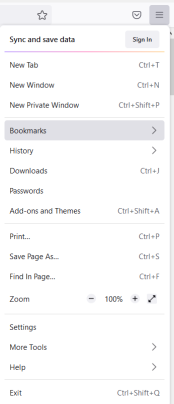
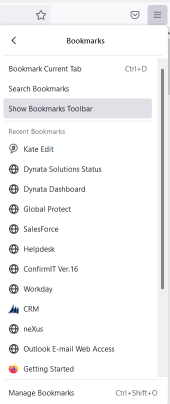
Firefox (bookmarks): Click on the three lines in the upper right-hand corner, click “bookmarks” and then “show bookmarks toolbar”.
-
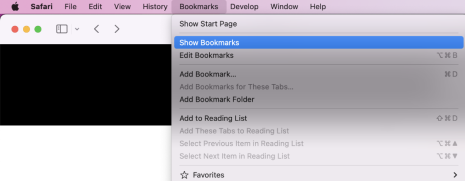
Safari (bookmarks): Go to “bookmarks” and “show bookmarks”.