Automated alerts can be used to send automated emails to recipients based on specific topics. Whenever a new post is added that matches the criteria, an email will be sent to the recipients.
Additionally, you can allow users to subscribe to automated alerts, providing them with the opportunity to stay connected and receive relevant updates.
How to create an Automated Alert
To create an automated alert, click on the bell icon in the upper right of Sharpr or you can access the navigation bar > Automated Alerts.
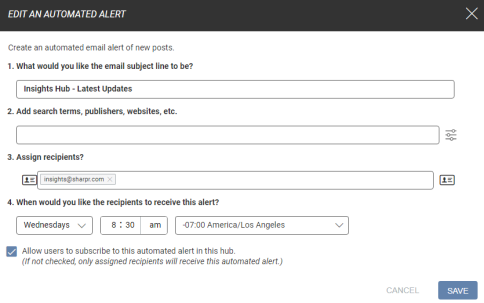
Click on Create an Automated Alert and a modal will pop-up to which the following can be added:
- Email subject line
- Add keywords/search terms or click on the fine tuner icon to filter by categories, classifications, etc.
- Assign recipients by copy/pasting emails or click on the ID icon to select from existing users and/or distribution lists
- Set the cadence via the dropdown
Enabling the option "Allow users to subscribe to this automated alert in this hub" grants all users within the Sharpr hub the ability to view the automated alert and choose to subscribe to it. This empowers users to stay informed and receive the automated alerts that interest them.
By leaving it deselected, the automated alert will be limited to assigned recipients and the visibility of the automated alert will be restricted to the creator.