Find anything uploaded into Sharpr using keywords, the fine tuner, or a combination of both! This guide will walk you through best practices when it comes to searching.
Basic Searching
Enter any search term into the search bar to find that search term within a post. Sharpr uses AI to extract every word from a post making searching straightforward and easy to use.

In this example, we are searching for the term “millennial”, where you can see a few results.
You can also change how results are sorted by clicking on the dropdown menu next to the search bar and select any of the listed options. This allows you to view results sorted by recency, relevancy, or both.
Preview Search Terms
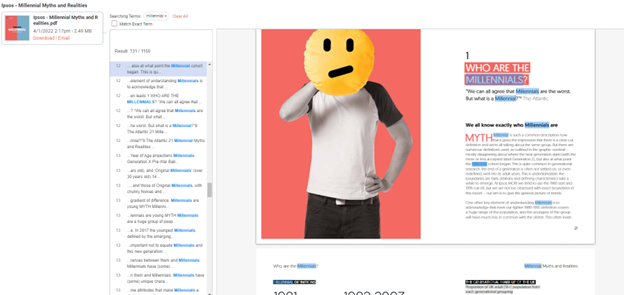
Click on Preview to view search results within the post. Click on any of the results to find the search term highlighted within the document.
Note: If the post is a web article, clicking on Read more will open a new tab to the source website. While we can search the web article for the search term, we cannot highlight the search term within that website.
Video Search Results
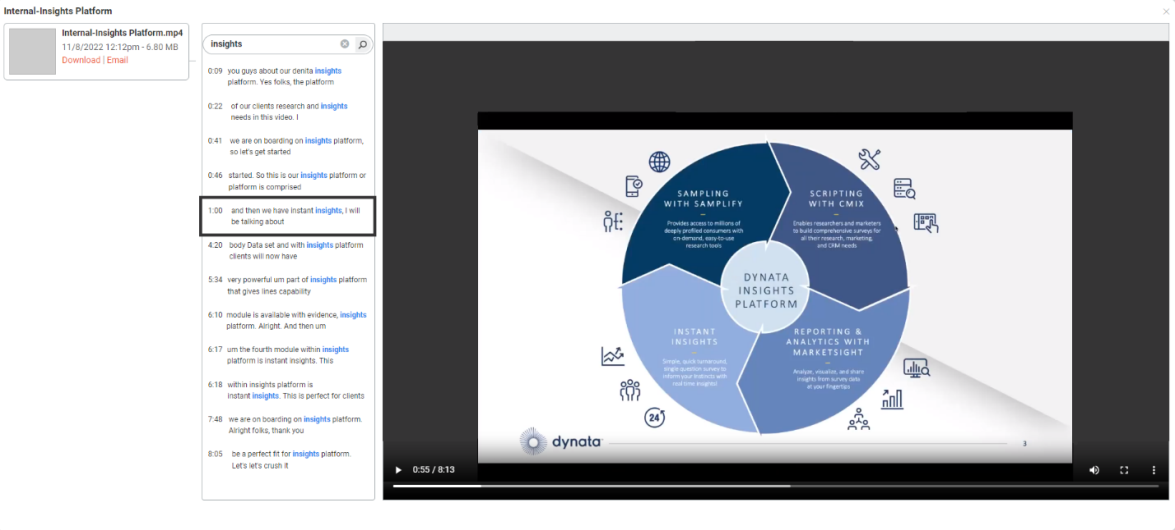
When clicking Preview for a video, search results will populate with a time stamp. Clicking on any of the results will bring you 5 seconds before the search term is mentioned so that you don’t miss it when you hit play!